Connect SuiteFleet to Claude
Link your SuiteFleet workspace to Claude using the MCP connector. Once connected, you can query your fleet data, track deliveries, and manage tasks directly from your Claude conversation.
TL;DR
- In Claude, click + → Connectors → Manage connectors.
- Click + Add custom connector and paste
https://mcp.suitefleet.com/sseas the URL. - Click Connect, then sign in with your SuiteFleet workspace, username, and password.
- When the Connected to SuiteFleet banner appears, ask Claude anything about your fleet.
Step-by-step
Open the Connectors menu in Claude
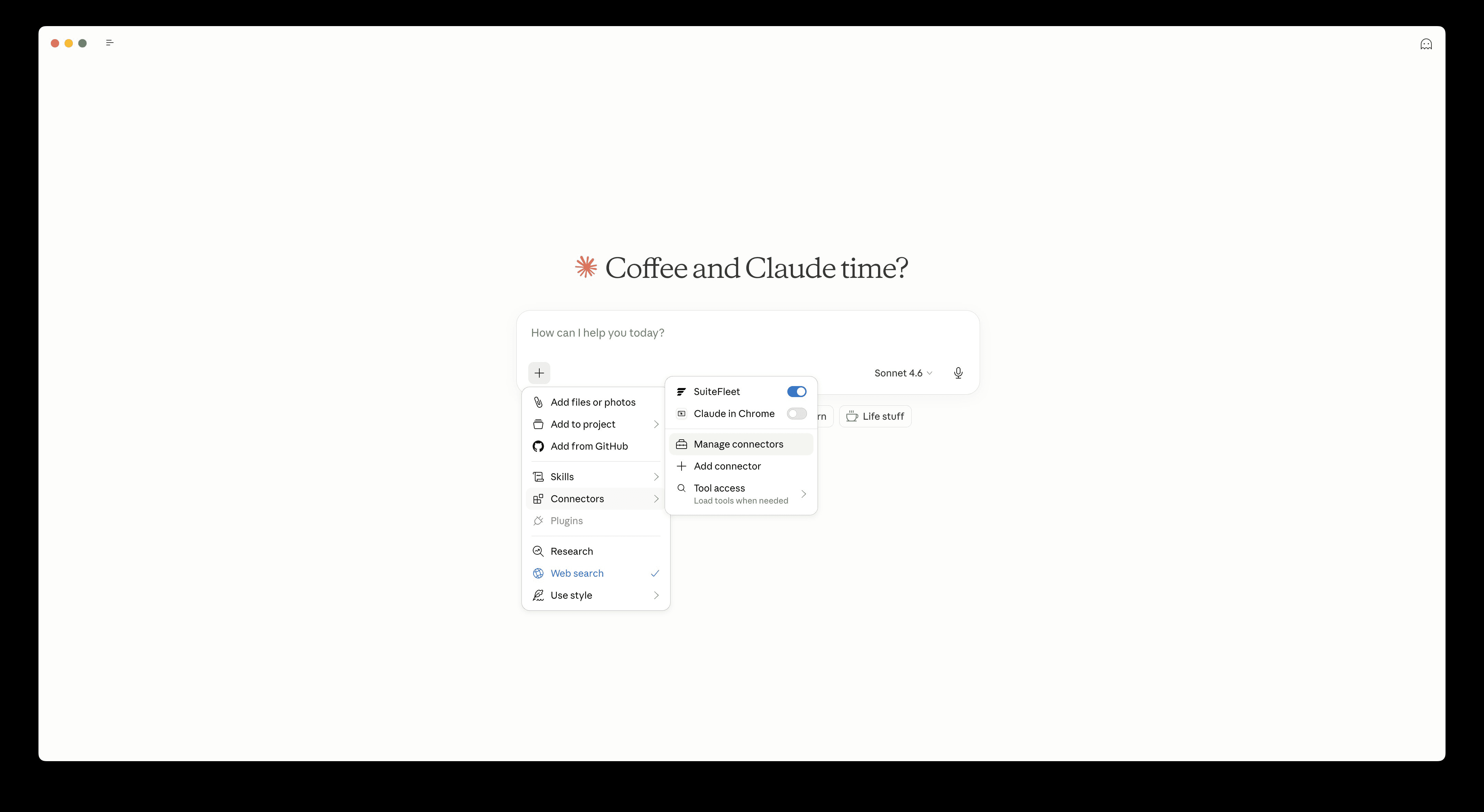
From the Claude home screen, click the + button on the left side of the chat input bar. A menu will appear — hover over Connectors to expand the submenu, then click Manage connectors.
You can also access this from any existing chat. The + button is always visible in the bottom-left of the input area.
Open the Add Connector menu
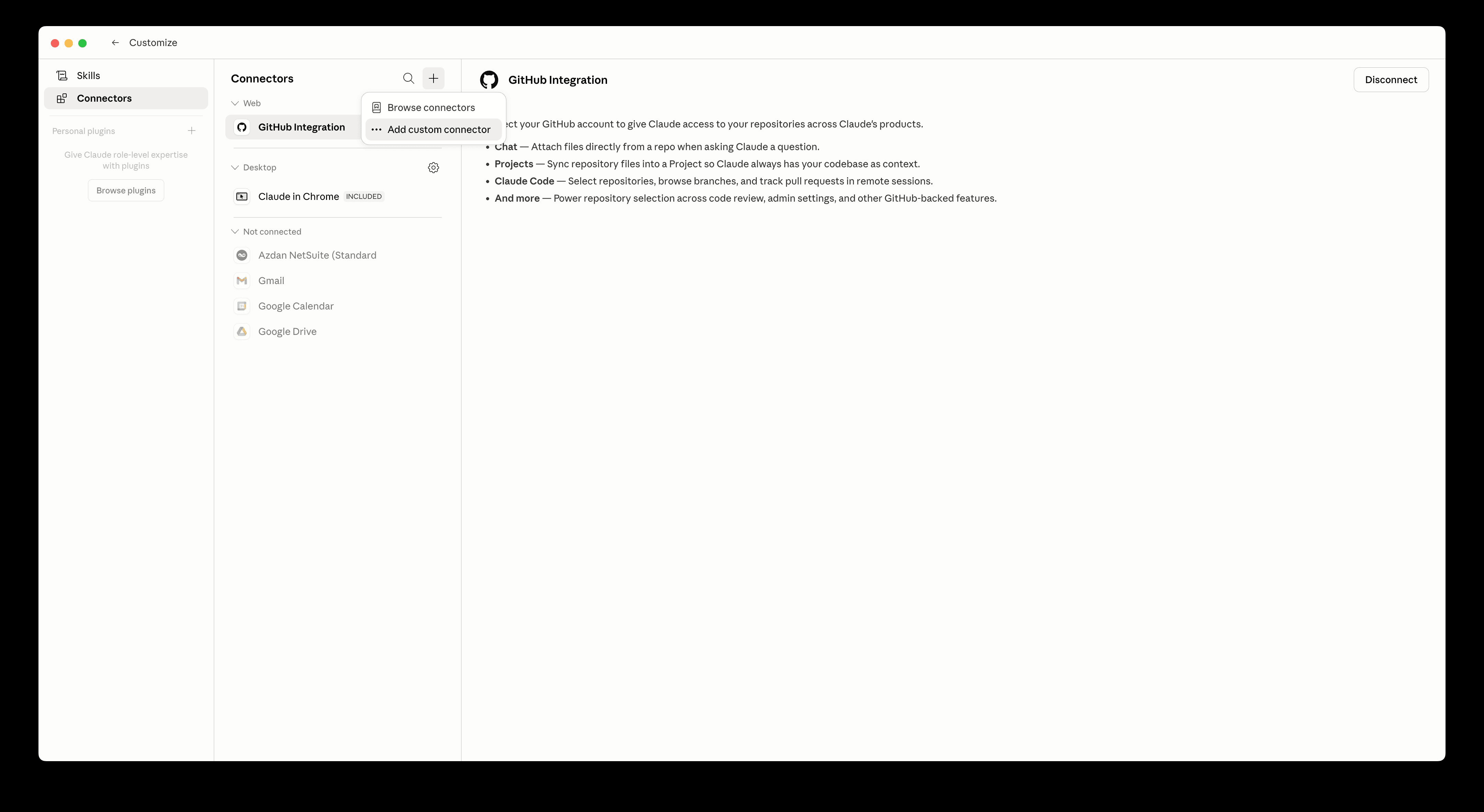
The Connectors settings panel will open. You’ll see existing connectors listed. To add SuiteFleet, click the + icon at the top right of the connectors list — next to the search icon.
Select "Add custom connector"
A small dropdown will appear with two options: Browse connectors and Add custom connector. Click Add custom connector to proceed.
SuiteFleet uses a custom MCP (Model Context Protocol) connector. This is a secure, standard protocol for connecting AI assistants to external data sources.
Enter the SuiteFleet MCP details
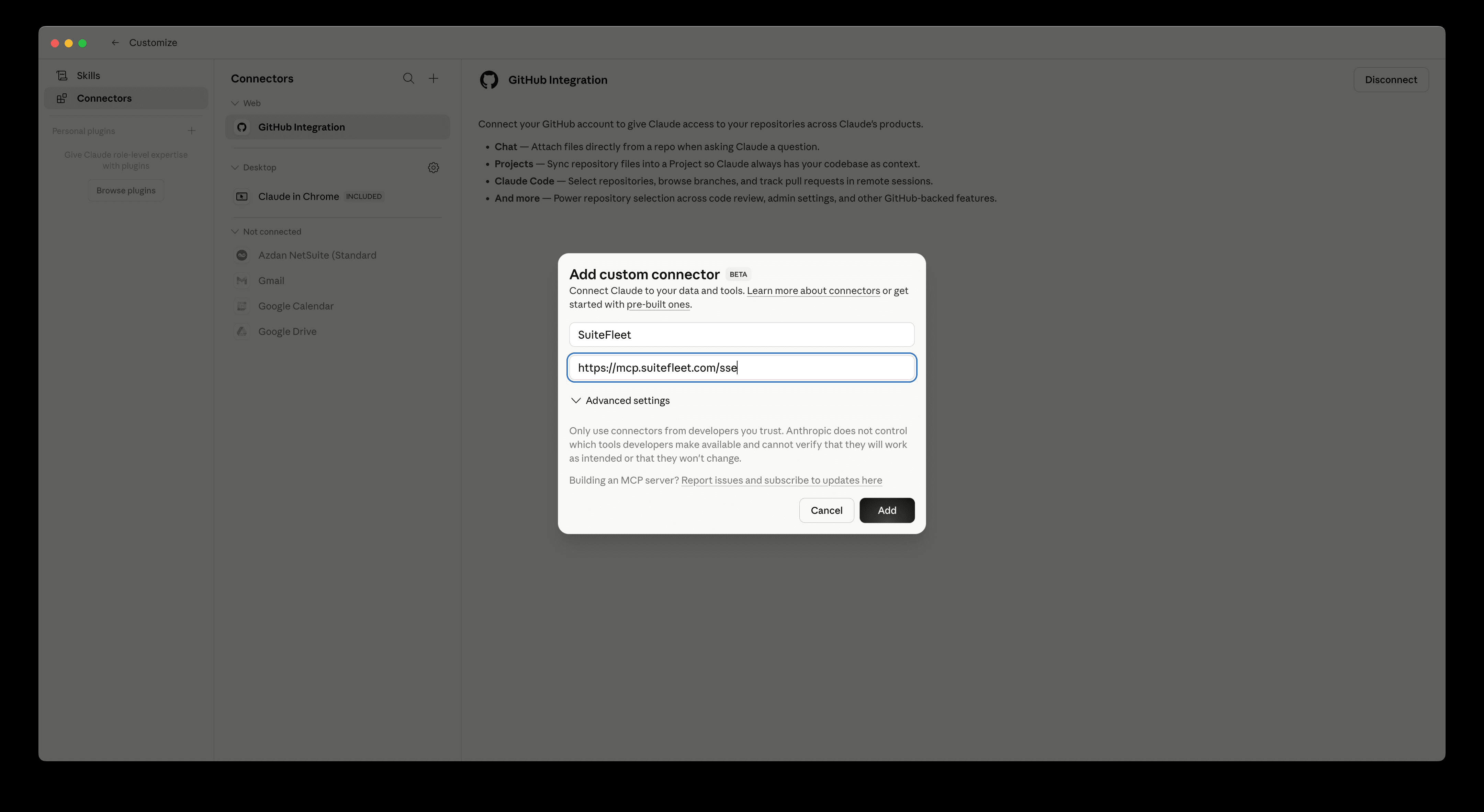
A dialog will appear asking for a connector name and URL. Fill in both fields exactly as shown:
Name: SuiteFleet
URL: https://mcp.suitefleet.com/sse
Once both fields are filled, click the Add button to save the connector.
Copy the URL carefully — make sure there are no extra spaces before or after the address. The /sse at the end is required.
Click Connect on the SuiteFleet connector
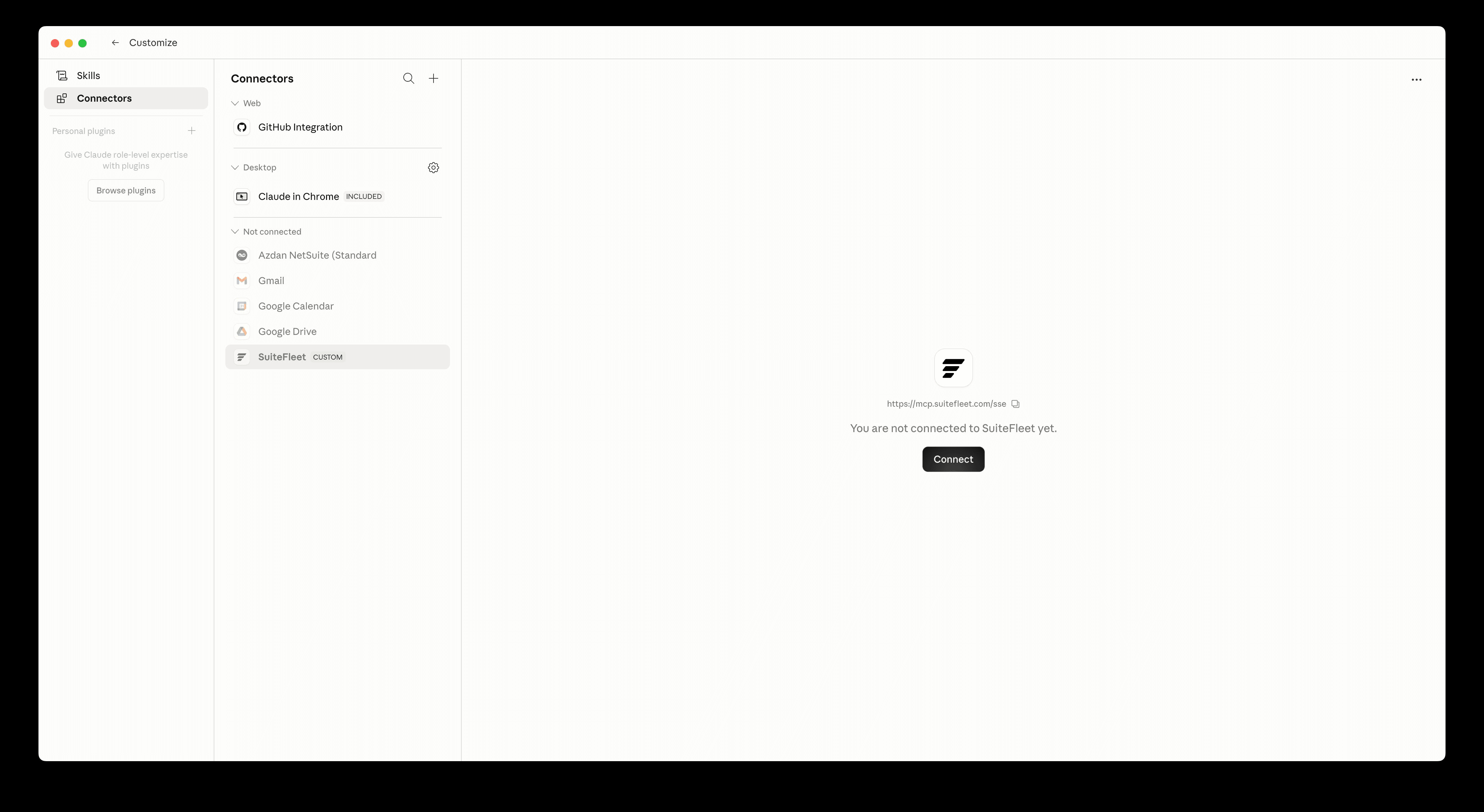
SuiteFleet will now appear in your connectors list under Not connected. Click on it to open the connector detail view. You’ll see the MCP URL and a Connect button — click it to begin authentication.
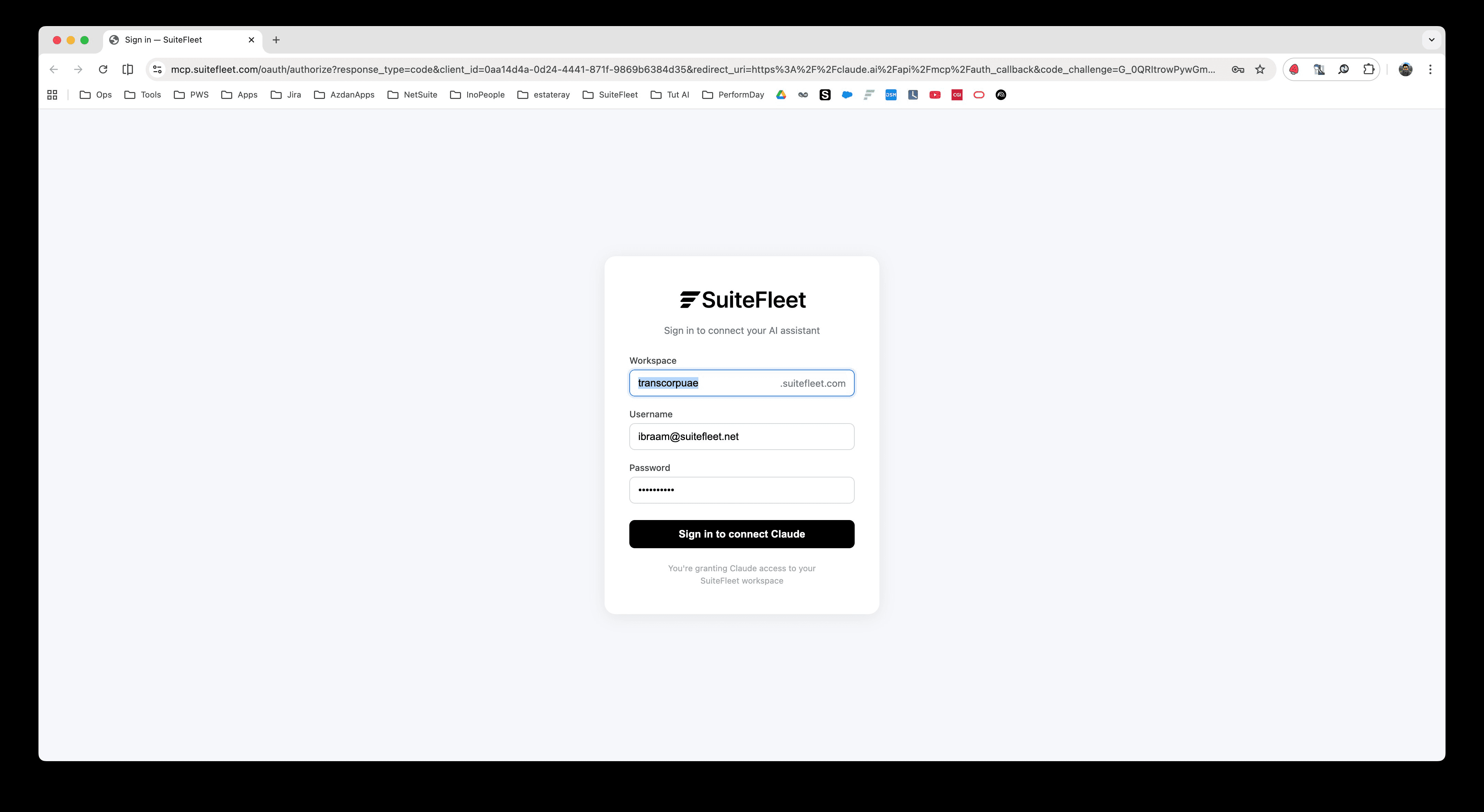
SuiteFleet sign-in page opens
A browser tab will open with the SuiteFleet authentication page. This is where you grant Claude access to your specific SuiteFleet workspace. You’ll need three pieces of information:
- Workspace — your company’s subdomain (e.g.
acmeforacme.suitefleet.com) - Username — your SuiteFleet email address
- Password — your SuiteFleet password
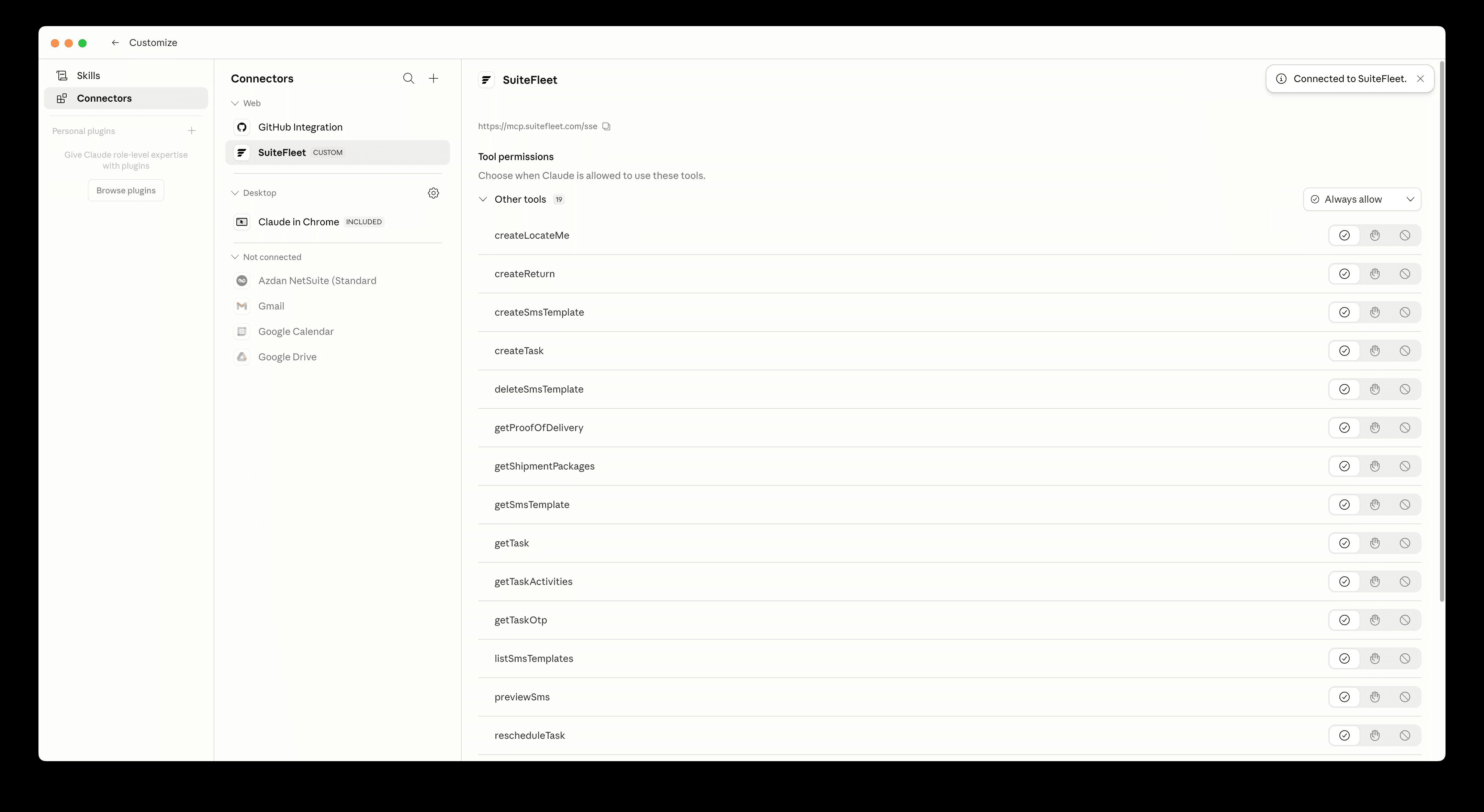
Enter your credentials and sign in
Fill in your Workspace, Username, and Password, then click Sign in to connect Claude. This grants Claude read and write access to your SuiteFleet workspace through the secure MCP protocol.
Your credentials are sent directly to SuiteFleet — Claude and Anthropic never see your password. This uses standard OAuth 2.0 authorization.
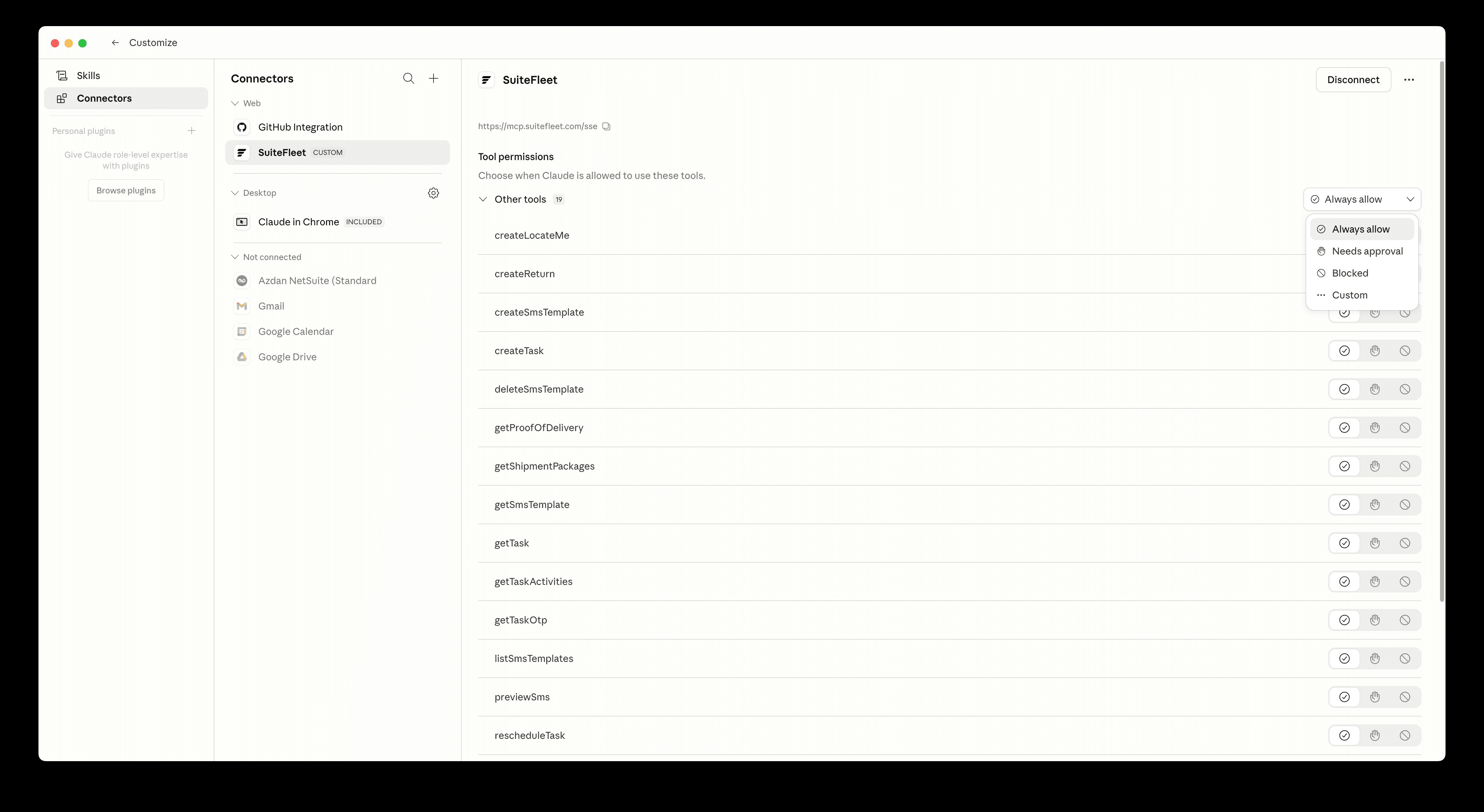
Connection confirmed
You’ll be redirected back to Claude. The SuiteFleet connector will now show a “Connected to SuiteFleet” confirmation banner at the top right. The connector detail panel also shows all 19 available tools with permission settings.
By default, all tools are set to Always allow — meaning Claude can use them automatically. You can change individual tools to Needs approval, Blocked, or Custom if needed.
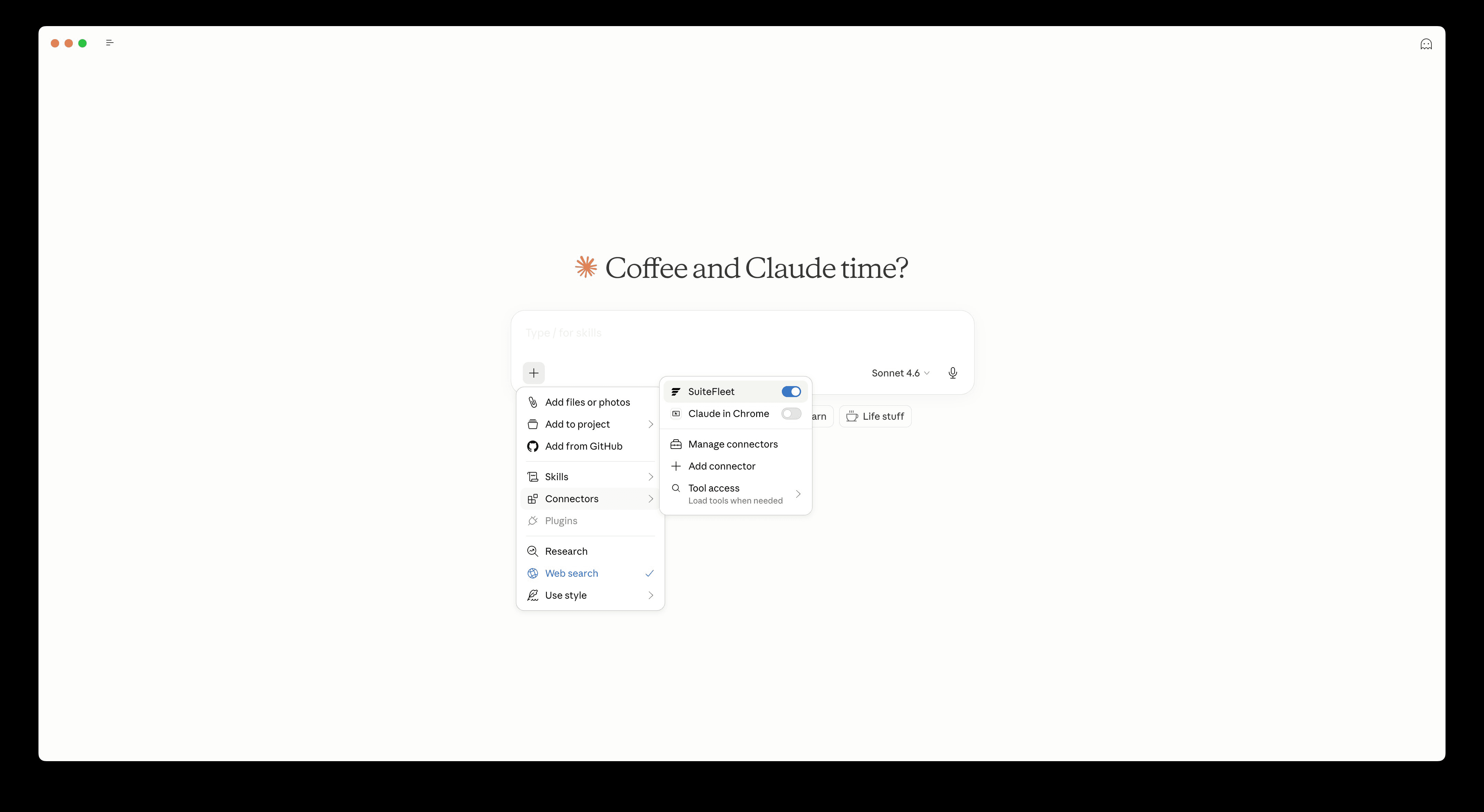
Start using SuiteFleet in Claude
Go back to the Claude chat. Click the + button, go to Connectors, and you’ll see the SuiteFleet toggle is now ON. Claude will automatically use SuiteFleet tools when relevant to your questions.
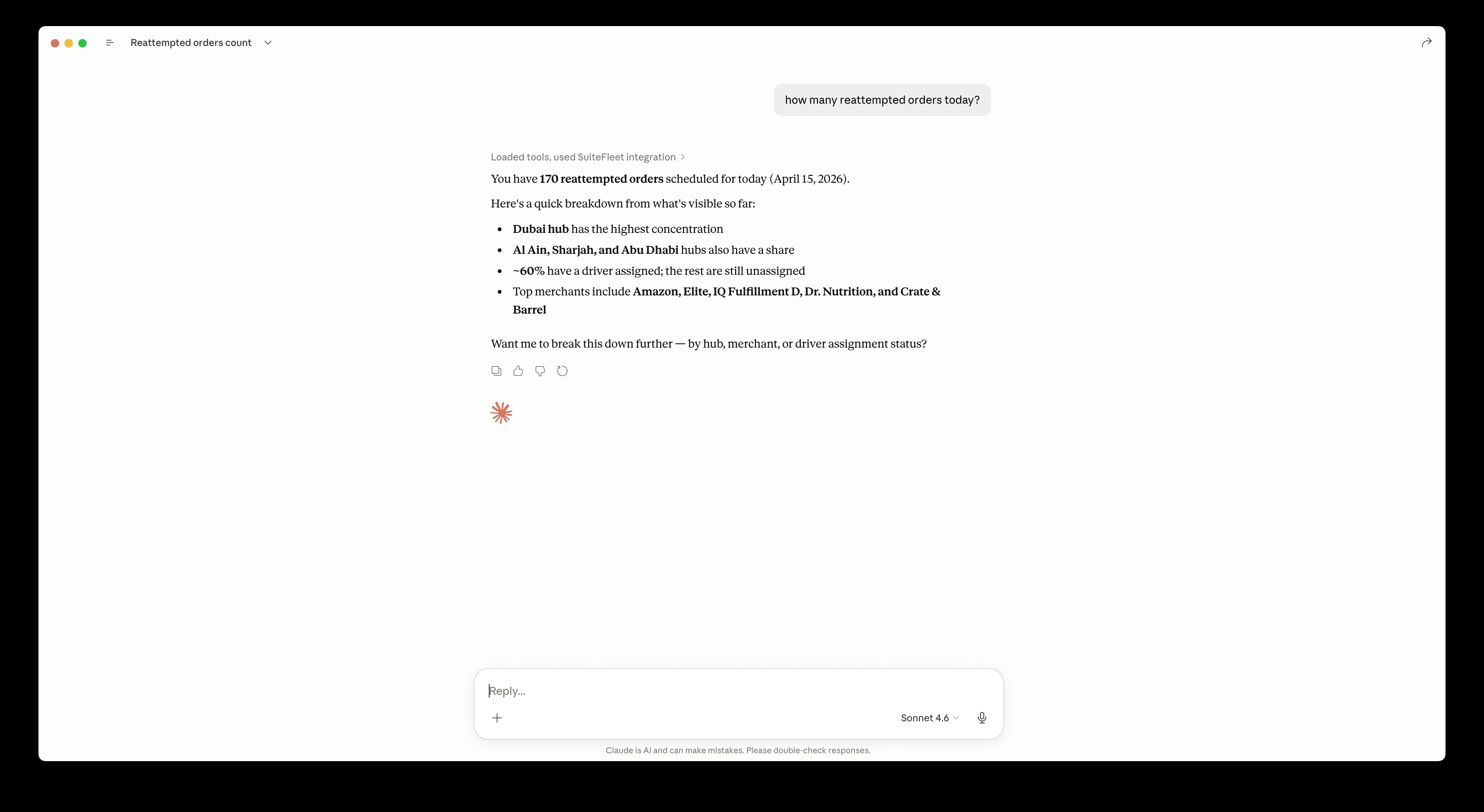
Try asking something like: “How many reattempted orders do I have today?” or “Show me unassigned tasks in the Dubai hub.”
You’ll see “Loaded tools, used SuiteFleet integration” in the response when Claude has successfully pulled live data from your workspace.
Available Tools
Once connected, Claude has access to 19 SuiteFleet tools — used automatically when relevant to your questions. No commands needed.
createTaskupdateTasksearchTasksgetTaskgetTaskActivitiesrescheduleTaskcreateReturngetShipmentPackagessearchDriversgetDriversearchHubsgetHubsearchMerchantsgetMerchantsearchCustomersgetWorkspaceSummarygetDailyReportgetCarrierListgetMcpVersionFrequently asked
Do I need a paid Claude account?
Where exactly is the MCP URL?
https://mcp.suitefleet.com/sse. Copy it carefully — the trailing /sse is required and the URL must have no extra whitespace.